Inspect the demo results
The demo saved its results in the targets store, the outputs/ folder of the clone (set by store in _targets.yaml; later pages write <store>). The store holds three kinds of output:
objects/: R objects, such as tables and the Seurat/Signac object.files/: data files, such as matrix folders and TSV tables.plots/: PNG plot images.
This page opens one example of each kind in the R session and shows what the public demo prints. The output reference describes the folders in detail.
Objects
Read a stored object by its target name with targets::tar_read(), here the cell metadata:
R
cell_metadata <- targets::tar_read(
  metadata_w_cell_types_tibble.WNN.immune_human_2x
)
cell_metadata
Output
# A tibble: 7,887 x 92
   orig.ident         barcode nCount_RNA nFeature_RNA log10_nCount_RNA
   <chr>              <chr>        <dbl>        <dbl>            <dbl>
 1 healthy_PBMC_human AAACAG~      4747          2272             3.68
 2 healthy_PBMC_human AAACAG~      7761.         3254             3.89
 3 healthy_PBMC_human AAACCA~      2616.         1342             3.42
 4 healthy_PBMC_human AAACCA~      6662.         2589             3.82
 5 healthy_PBMC_human AAACGG~       731.          577             2.86
 6 healthy_PBMC_human AAACGT~      1952          1160             3.29
 7 healthy_PBMC_human AAAGGA~      4052          2010             3.61
 8 healthy_PBMC_human AAAGGA~      2731          1397             3.44
 9 healthy_PBMC_human AAAGGA~      4103.         1861             3.61
10 healthy_PBMC_human AAAGGA~      3940.         1986             3.60
# i 7,877 more rows
# i 87 more variables: RNA_mito_percent <dbl>, novelty <dbl>,
#   TSS.enrichment <dbl>, nucleosome_signal <dbl>,
#   atac_fragments_in_blacklist_frac <dbl>, donor_id <chr>,
#   vireo_max_prob_singlet <lgl>, vireo_max_prob_doublet <lgl>,
#   vireo_n_vars <lgl>, vireo_best_doublet <lgl>,
#   vireo_doublet_logLikRatio <lgl>, vireo_type <chr>, ...
The table has one row per retained nucleus, with its QC metrics, GEX, ATAC and WNN clusters and cell-type labels. UMAP coordinates are kept apart, in UMAP_embeddings_tibble.WNN.immune_human_2x and its GEX and ATAC counterparts, so that UMAPs do not hold up cell typing and the optional modules. The multimodal Seurat/Signac object is a convenience export for exploring the results with Seurat and Signac:
R
demo_object <- targets::tar_read(
  multimodal_Seurat_object.8_multimodal_QC.immune_human_2x
)
demo_object
Output
An object of class Seurat
139033 features across 7887 samples within 3 assays
Active assay: RNA (36601 features, 3000 variable features)
 3 layers present: counts, data, scale.data
 2 other assays present: ATAC, motif_family_accessibility
 8 dimensional reductions calculated: PCA, PCA_UMAP, PCA_harmony, PCA_harmony_UMAP, LSI, LSI_harmony, LSI_harmony_UMAP, WNN_harmony_NN_UMAP
The object reads its count matrices and ATAC fragments from files in the store and example_data/, so keep those folders in place.
Files
For a file target, tar_read() returns the path of the saved file or folder:
R
targets::tar_read(cellranger_barcodes_tsv.healthy_PBMC_human)Output
[1] "outputs/files/healthy_PBMC_human/cellranger_barcodes_tsv.tsv"Open the file with a suitable reader, here BPCells for the aggregated gene-expression counts:
R
GEX_counts <- BPCells::open_matrix_dir(
  targets::tar_read(aggregated_GEX_BPCells_matrix_dir.GEX.immune_human_2x)
)
GEX_counts
Output
36601 x 13402 IterableMatrix object with class MatrixDir

Row names: MIR1302-2HG, FAM138A ... AC007325.2
Col names: healthy_PBMC_human_AAACAGCCAAATATCC-1, healthy_PBMC_human_AAACAGCCAGGAACTG-1 ... controller_PBMC_human_TTTGTTGGTAGGATTT-1

Data type: uint32_t
Storage order: column major

Queued Operations:
1. Load compressed matrix from directory outputs/files/immune_human_2x/GEX/aggregated_GEX_BPCells_matrix_dir
The first file belongs to one GEM well, the second to the aggregation. Paths follow the target name from right to left: aggregated_GEX_BPCells_matrix_dir.GEX.immune_human_2x is saved in outputs/files/immune_human_2x/GEX/aggregated_GEX_BPCells_matrix_dir/. consensus_peak_BPCells_matrix_dir.ATAC.immune_human_2x holds the ATAC peak counts.
Plots
Plot targets return image paths in the same way, under outputs/plots/. The demo built one categorical UMAP per variable:
R
unlist(
  targets::tar_read(categorical.UMAPs.8_multimodal_QC.immune_human_2x),
  use.names = FALSE
)
Output
[1] "outputs/plots/immune_human_2x/8_multimodal_QC/UMAPs/categorical/WNN_harmony_SNN_cluster_named.png"
[2] "outputs/plots/immune_human_2x/8_multimodal_QC/UMAPs/categorical/WNN_harmony_SNN_cluster_cell_type.png"
[3] "outputs/plots/immune_human_2x/8_multimodal_QC/UMAPs/categorical/donor_id.png"
[4] "outputs/plots/immune_human_2x/8_multimodal_QC/UMAPs/categorical/GEM_well_ID.png"
Open WNN_harmony_SNN_cluster_cell_type.png from that list to see the WNN clusters labeled by cell type:
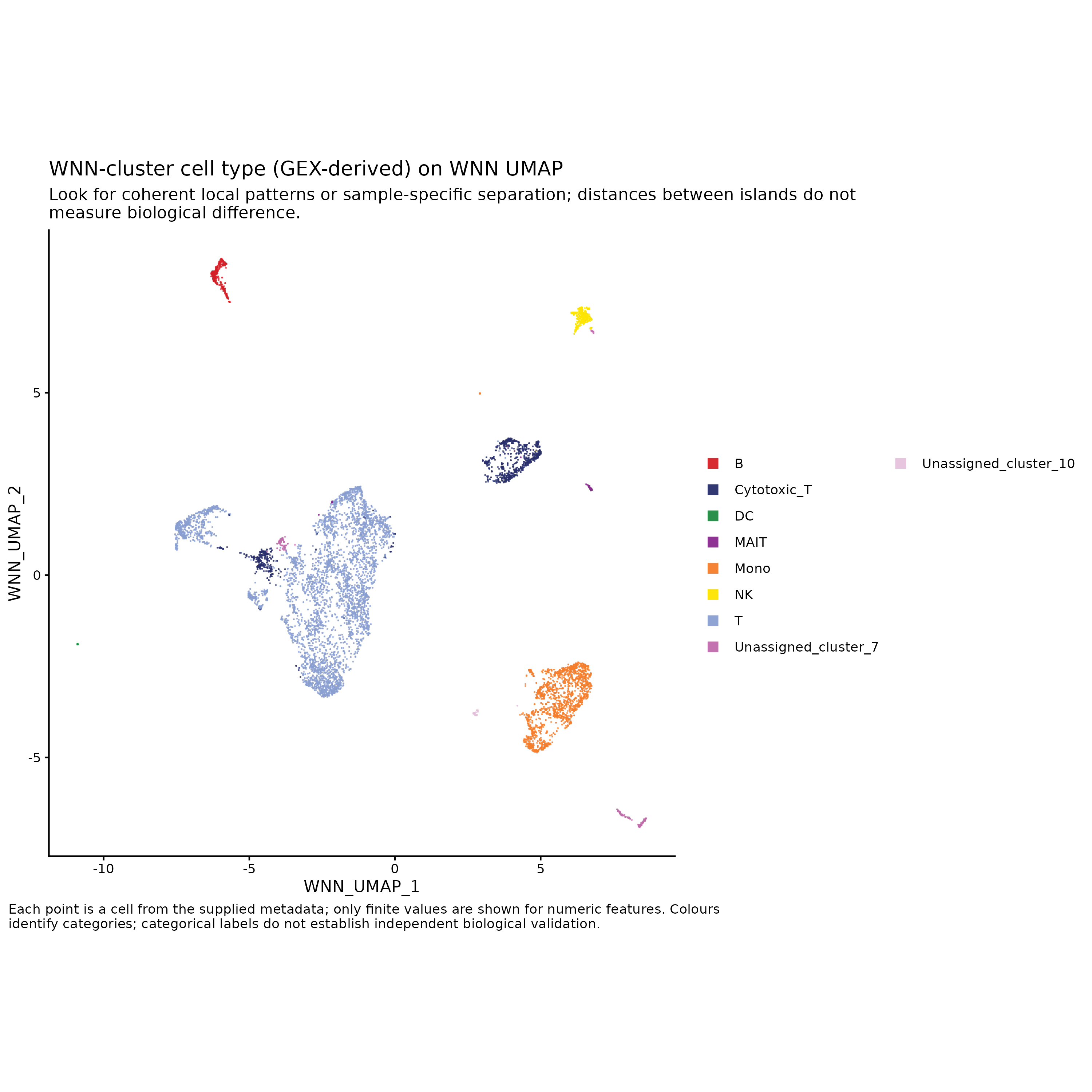
Plot subtitles and captions explain how to read each plot.
Customize a plot
Plots are saved as images only. To change one, redraw it from the data it shows. targets::tar_manifest() returns the command of a plot target, which names its plotting helper and input targets:
R
plot_target <- targets::tar_manifest(
  names = "categorical.UMAPs.8_multimodal_QC.immune_human_2x",
  fields = command
)
cat(plot_target$command)
Output
save_plots_structured(plot_UMAP_from_metadata(metadata_w_cell_types_analysis_tibble.WNN.immune_human_2x,
     variable = categorical_UMAP_var.WNN.immune_human_2x, umap_cols = c("WNN_UMAP_1",
         "WNN_UMAP_2")), dyn_suffix_in_subdir = TRUE, override_suffix = stringr::str_replace_all(categorical_UMAP_var.WNN.immune_human_2x,
     "[/\\\\]", "_"))
Read the inputs with targets::tar_read(), call the helper to get a ggplot object, edit it with the usual ggplot2 functions and save your copy outside the store, where a rerun cannot overwrite it.
Possible next steps
- Build the rest of the demo aggregation, including every checkpoint plot, with
targets::tar_make(). The demo configuration has no other active aggregation and no optional modules. - Browse the output gallery for an example of every plot the pipeline and its optional modules save.
- Start your own analysis with Plan your analysis.